Working with Data Table Editor
Most of the sections in this editor are available in Workbook Internal Data Table Editor. However, you can only create a single data table in this editor. To join data tables, you can use the Joined Data Table Editor.
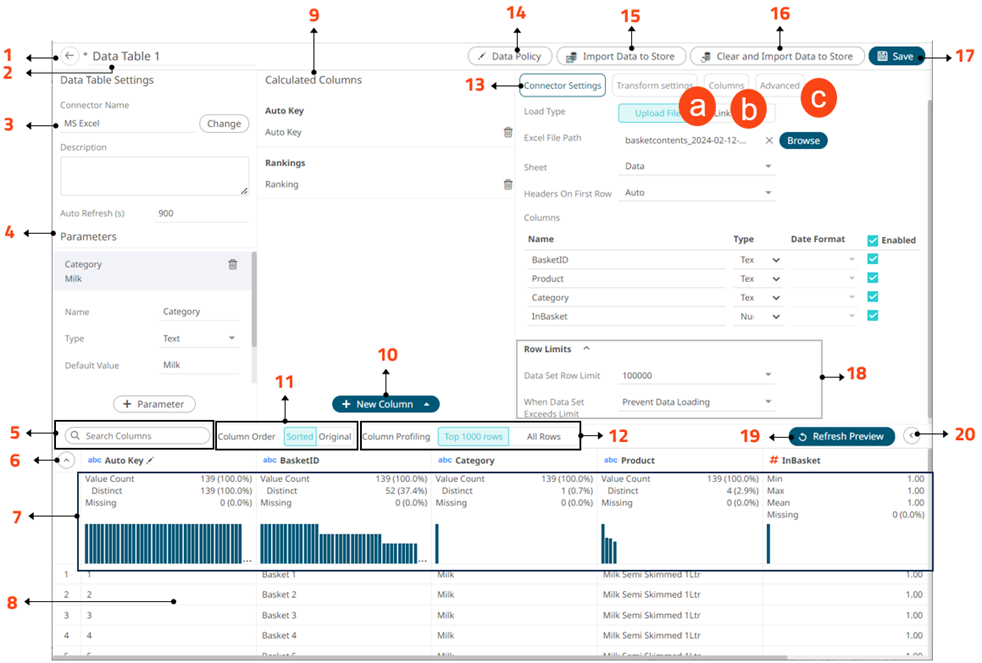
Data Table Editor Sections and Definitions
| Section | Description |
| 1 |
Back Exit the Data Table Editor and go to the Data Library page. |
| 2 |
Data Table Name Name of the data table. You can edit by entering a new one and clicking |
| 3 |
Data Table Settings Displays the data source that you will connect to. Click |
| 4 |
Data Table Parameters Add or manage data table parameters. |
| 5 |
Search Columns Allows searching of columns on the Data Preview. |
| 6 |
Collapse Data Profile Pane Collapse the Data Profile pane. Click |
| 7 |
Data Profile Pane Displays the following information:
|
| 8 |
Data Preview Executes the queries to return and display preview of the data table you are creating. NOTE: The maximum number of rows displayed in the Data Preview is 100. |
| 9 |
Calculated Columns Allows you to view and manage the calculated columns. |
| 10 |
New Column Options Allows you to add any of the following columns:
|
| 11 |
When the Column Order is set to Sorted, the columns are grouped by type (Text, Date/Time, |
| 12 |
Column Profiling Perform column profiling either for the Top 1000 Rows or All Rows. |
| 13 |
Connector Settings Displays the connector settings of the data source and allows for limiting the amount of data to be returned. |
| 14 |
Data Policy Allows you to set the data policy for data tables in the Data Library. |
| 15 |
Import to Data Store Allows you to import the data table to a data store. |
| 16 |
Clear and Import to Data Store Allows you to clear the earlier imported data and import again to the data store. |
| 17 |
Save Data Table Saves the data table definition. |
| 18 |
Row Limits Settings Allows setting of the row limit of data sources. |
| 19 |
Refresh Preview Allows you to refresh the data preview. |
| 20 |
Collapse Data Preview Collapse the Data Preview pane. Click |
 .
. to select another data source. Other data table definitions are displayed including the description and the auto refresh period (in seconds).
 to expand the Data Profile pane.
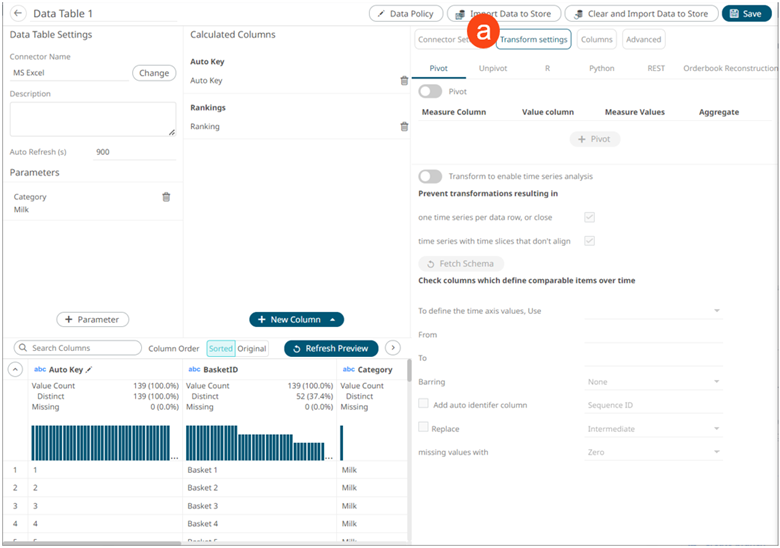
Clicking Transform Settings  displays the Transform Settings pane.
| Section | Description |
|
Transform Settings |
Allows you to perform the following:
|
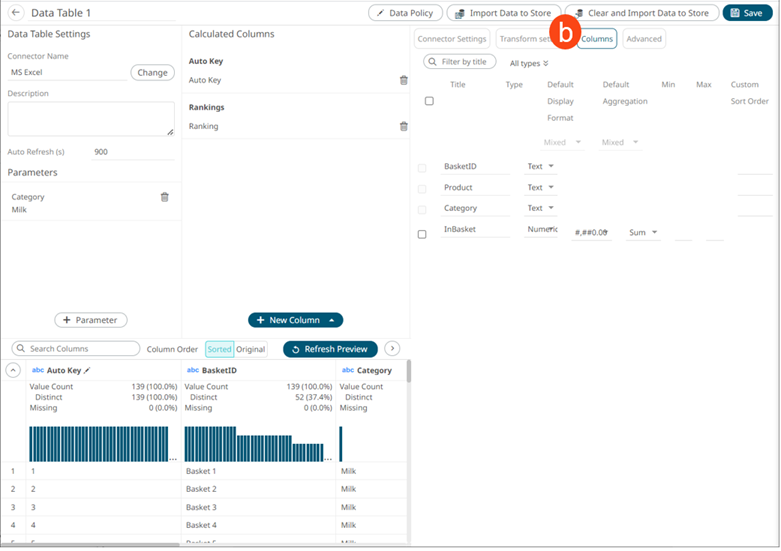
Clicking Columns  displays the Columns Settings pane.
| Section | Description |
|
Column Settings |
Allows you to perform the following:
|
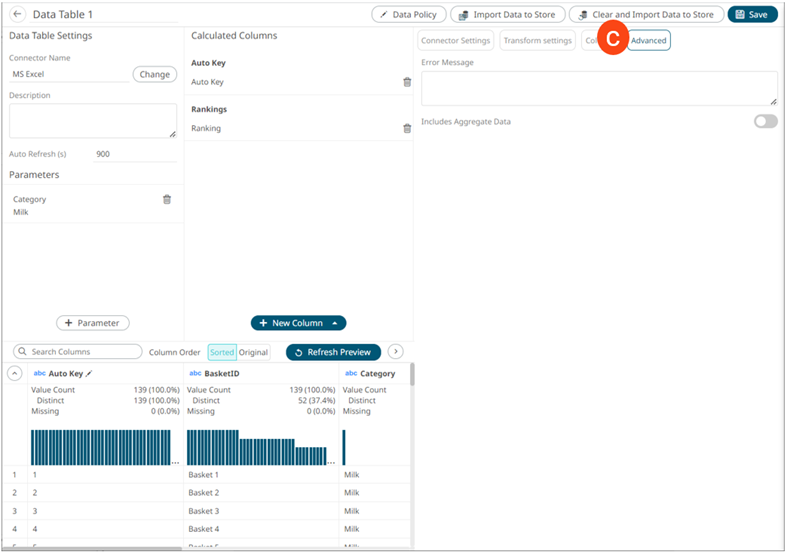
Clicking Advanced  displays the Advanced Settings pane.
| Section | Description |
|
Advanced |
Allows you to:
|
(c) 2013-2024 Altair Engineering Inc. All Rights Reserved.