Apply Moments
Create concentrated moments by applying a load, representing moments, to a node or set.
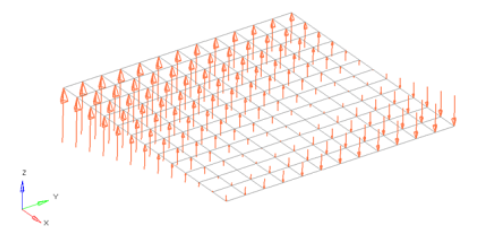
Moments are load config 2 and are displayed with a double-headed vector with the letter M at the tail end.
-
From the Analyze ribbon, Loads tool group, click the
Moments tool.
図 1. 
-
Select the keyword to create from the Load Type menu.
The available types depend on the current solver interface.
- Choose the entities to which the moment will be applied.
- Choose whether to create the forces in the global system or a local system.
-
Specify the magnitude and direction of the moment.
- Constant Components
- Specify the direction and magnitude of the load by entering the X, Y, and Z values of the components.
- Constant Vector
- Specify the magnitude, then use the plane and vector tool to specify the vector along which the load should act.
- Curve Components
- Specify the X, Y, and Z components to define the direction and magnitude, for example, (2,2,2) will be twice the magnitude of (1,1,1). Next, select an existing curve. Last, specify a factor for the curve’s xscale to use the same curve for many different cases, but vary the scale of its intensity or time to match the needs of your current load.
- Curve Vector
- When working with loads that are time dependent, use this method to first specify a magnitude (yscale) for the curve. Next, select an existing curve, then use the plane and vector tool to specify a direction, if necessary. Last, specify a factor for the curve's xscale to use the same curve for many different cases, but vary the scale of its intensity or time to match the needs of your current moment.
- Equation
- Specify the loading equation. Use the plane and vector tool to specify a direction, then select the coordinate system to which the vector corresponds.
- Field Loads
- Interpolate and extrapolate loads from existing loads. You can then select the desired elements to which you wish to add loads, and any existing loads on which you wish to base additional forces.
- Linear Interpolation
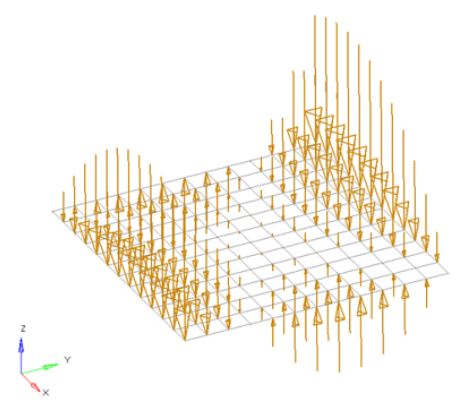
- Interpolate loads from a saved file or existing loads.注: Only available for shell elements.
- You can then select the desired nodes to which you wish to add
loads, and pick 3 or more existing loads that enclose those nodes.
When you interpolate, a linear function is used to create additional
loads on the selected nodes, with magnitudes based on the magnitudes
of the loads that you had selected.
図 2. 
- Nodal distribution
- Specify the magnitude, then use the plane and vector tool to specify the vector along which the load should act.
Loads from files formatted as CSV (Comma Separated Values) or SSV (Space-Separated Values) text files can be interpolated.
Field Loads will not overwrite any existing loads, so you can create an area of loads via linear interpolation and then use field loads to expand the load area without changing the loads already inside of the area.
- If working in a controller, click Create.
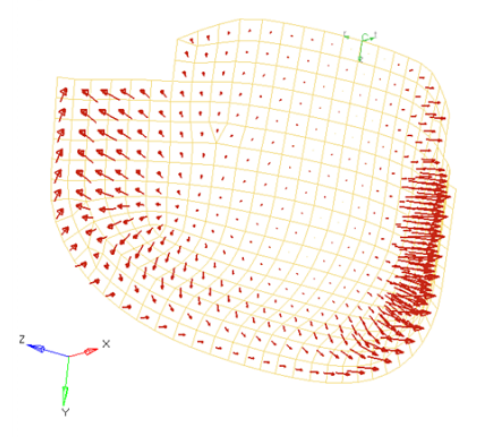
Equationの指定によって、集中荷重、モーメント、荷重、温度、流束などを、適用するエンティティの座標値によって変化する荷重量を定義できます。このような荷重の例としては、適用点からの距離によって変化する温度の適用や内部の流体の高さによって変わるコンテナの壁にかかる圧力などが考えられます。